
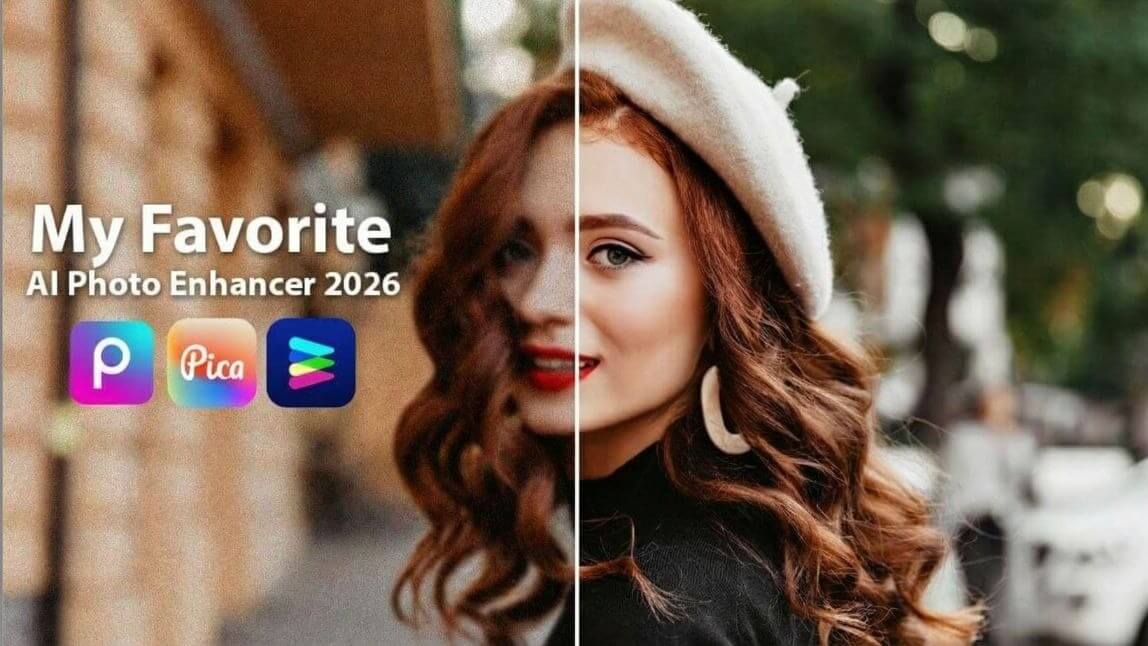
This guide is for content creators, small business owners, bloggers, and anyone who regularly works with photos and wants better results without spending hours learning complex editing software. Whether you are retouching product images for an online store, polishing photos for social media, or trying to salvage a picture that did not come out quite right, there are AI-powered tools online that can handle the heavy lifting for you. After reading, you will know which features to prioritize, how different platform types perform, and which options are worth testing based on your specific use case.
Why Most People Settle for Mediocre Photos (And How AI Changes That)
There is a gap between the photos most people take and the photos they actually want. That gap used to require either professional editing skills or a professional photographer. AI-powered enhancement tools have narrowed it dramatically. The best online tools can now correct exposure, remove unwanted objects, sharpen blurry detail, and clean up backgrounds in the time it takes to upload a file.
The challenge is that the category has grown crowded. Tools range from narrow, single-function utilities to full-featured editors wrapped around AI automation. Some are free, some are subscription-based, and the quality of the AI behind them varies more than their marketing materials suggest. Understanding what separates a reliable AI enhancer from a mediocre one is the first step toward choosing the right tool.
The use case matters here more than in most software categories. A tool that performs brilliantly on portrait retouching may produce mediocre results on product photography. A platform built for quick social media edits may not be the right choice for someone restoring old family photographs. Matching the tool to the task is what this guide is designed to help you do.
Eight Features That Separate Strong AI Photo Enhancers From Weak Ones
Before testing any specific platform, build a consistent evaluation checklist. These eight features apply to every tool in this category and will help you make a fair comparison.
1. One-Click Auto-Enhance Quality Almost every AI photo tool includes some version of automatic enhancement. What matters is how intelligently it reads your specific image. A strong auto-enhance will handle exposure and color balance differently depending on whether your photo is a portrait, a food shot, a landscape, or a product on a plain background. A weak one applies the same correction to everything and often overprocesses the result. Test on a difficult image, not just a well-lit one.
2. Background Removal Precision Background removal is now a standard AI feature, but edge accuracy still varies significantly across platforms. The test cases that reveal a tool’s real capability are: hair against a complex background, transparent or semi-transparent objects, subjects photographed outdoors with mixed textures behind them, and close-cropped shots where the subject meets the edge of the frame. Pay attention to whether the tool lets you refine edges manually after the AI makes its initial selection.
3. Object and Distraction Removal The ability to erase something from a photo and have the AI fill in the surrounding area convincingly is one of the most practically useful features in this category. Power lines, cluttered countertops, strangers in the background, shadows on a product shot: these are the real-world problems users bring to enhancement tools. Evaluate whether the fill looks natural at full resolution or whether it introduces smearing, repeated texture patterns, or visible artifacts.
4. Sharpening and Clarity Recovery Not every photo that needs enhancement is poorly lit. Many are simply soft, slightly out of focus, or degraded from compression after upload to social media. A good AI sharpener recovers edge clarity and fine detail without introducing harsh halos or artificial texture. Test this feature specifically on photos that are mildly blurry rather than severely out of focus, since the latter is a harder problem that most tools handle poorly regardless.
5. Skin and Portrait Retouching If you regularly photograph people, check whether the platform includes dedicated portrait tools: skin smoothing, blemish removal, red-eye correction, and teeth whitening. The best portrait AI tools apply these adjustments selectively, recognizing skin tones and facial features rather than blurring everything uniformly. Over-smoothed skin that loses all texture is a common failure mode for tools in this area.
6. Noise Reduction Low-light photography almost always produces digital noise, especially on smartphone cameras. AI noise reduction analyzes the image to distinguish genuine detail from grain and removes the latter without flattening the former. Evaluate this on actual low-light photos you have taken rather than on the platform’s sample images, since different cameras produce different noise patterns.
7. File Format and Size Support Practical limitations matter. Check whether the tool accepts the file formats you actually use: JPEG, PNG, WebP, HEIC, or RAW. Some platforms cap file size on free plans, which becomes a problem if you shoot on a high-resolution camera. Also confirm whether there are limits on the number of images you can process per day or month on the free tier.
8. Workflow Continuity After Enhancement An enhanced photo is often a means to an end rather than the final deliverable. You may need that photo in a social media post, a product listing, a flyer, or an email campaign. Tools that let you take your enhanced image directly into a broader design or publishing workflow without re-uploading it to a second platform will save meaningful time over the course of regular use. This is one of the more underrated differentiators in the category.
How Different Platform Types Approach Enhancement
Standalone AI Upscalers
These tools exist to solve one problem: making small or low-resolution images larger and sharper. They use AI to fill in detail that the original image did not contain, essentially generating plausible texture and edge definition based on what the surrounding pixels suggest should be there.
Dedicated upscalers perform this specific task better than general-purpose editors because the entire model is trained on that single objective. If you are regularly working with old photographs, compressed web images, or product shots that need to be displayed at much larger sizes than they were captured, a dedicated upscaler is worth knowing about. The limitation is obvious: they do not help with color correction, background removal, noise reduction, or any other retouching task.
The output quality varies by how much upscaling you need. Doubling an image’s dimensions typically produces natural-looking results. Pushing four times or higher starts to show AI-generated artifacts, particularly around fine textures like fabric or hair. Test the tool at the specific scale you need before relying on it for professional output.
Mobile-First Retouching Apps
A significant portion of photo enhancement happens on phones, and a number of platforms are built specifically for that context. Mobile-first tools tend to prioritize portrait retouching, quick filter application, and single-image edits. The interfaces are designed for touchscreens, with large controls and gesture-based adjustments that do not translate to desktop workflows.
The AI in these tools is typically optimized for selfies and social content. Skin retouching, background blur, and color grading for social platforms are the strong suits. The same tools tend to be less effective on non-portrait images and offer fewer manual controls for users who want to go beyond the automatic suggestions.
If the majority of your photos are portraits taken on a phone and the primary destination is social media, a mobile-first retouching app will likely be your most efficient option. If you also need to handle product photography, documents, or images for print, the narrower feature set will become a limitation quickly.
Full-Featured Online Photo Editors With AI Tools
This is the category that covers the widest range of use cases and the category where most users who need more than a single-purpose fix will land. These platforms combine AI automation for the time-consuming steps, one-click enhancement, background removal, object editing, with manual controls for users who want to fine-tune the results.
The better tools in this category do not force a choice between automatic and manual editing. They use AI to make an intelligent first pass and then give you the controls to adjust what the AI got right and fix what it got wrong. The interface is built so that sliders, crop tools, and adjustment panels are accessible without requiring you to understand the photographic principles behind them.
Adobe Express as One Strong Option to Consider
For users who need AI enhancement alongside a broader set of creative tools, all in one free browser-based platform, the Adobe Express image quality enhancer is a practical choice worth evaluating. The auto-enhance feature analyzes your photo and applies adjustments to exposure, contrast, saturation, and clarity automatically, producing a usable result in seconds that you can then refine with manual slider controls if needed.
Two features stand out as particularly useful for non-designers. First, the Firefly-powered generative editing tools let you remove objects from a photo or add new elements using a text prompt, and the results are designed to be commercially safe for use in paid advertising and business contexts. Second, the Sharpen tool in the Adjustments panel gives you manual control over focus and clarity, which is useful for images that need more targeted correction than auto-enhance provides. Background removal is also available as a one-click function, and it works across portrait, product, and general photography.
What separates Adobe Express from standalone enhancement tools is what happens after you improve your photo. The enhanced image stays within the platform, so you can take it directly into a social media post, advertisement, flyer, or presentation template without leaving the browser or re-uploading to a second tool. The platform is free to start, accepts JPEG, PNG, and WebP files up to 40MB, and works on both desktop and mobile via an iOS and Android app. For users whose photo editing is part of a larger content creation workflow, that continuity adds meaningful practical value.
Matching the Tool to the Task: A Quick Reference
Rather than recommending a single tool for everyone, the more useful approach is matching capabilities to common use cases:
- Product photography for e-commerce: Prioritize background removal accuracy, object removal for cleanup, and output resolution. One-click enhancement is useful but secondary.
- Portrait and headshot retouching: Look for dedicated portrait AI tools with skin smoothing, blemish removal, and eye-area correction. Test on real portraits, not sample images.
- Social media content: Speed and workflow continuity matter most. A tool that goes from enhancement to design-ready output in a single session will serve you better than a faster enhancer that requires additional steps elsewhere.
- Restoring old or damaged photographs: Dedicated AI restoration tools or platforms with strong noise reduction and sharpening features tend to outperform general editors for this task.
- Low-light photography improvement: Prioritize noise reduction quality. Test specifically in low-light conditions rather than evaluating the tool only on well-lit images.
Mistakes to Avoid When Evaluating AI Photo Tools
Evaluating a platform using only the sample images provided on its own website is a consistent error. Sample images are chosen specifically because the tool handles them well. Upload three to five of your own photos, including at least one that represents a genuine challenge: poor lighting, a complex background, or a distracting element that needs removal.
Overlooking the terms of service around AI-generated content is another mistake with real consequences. If you plan to use enhanced or generatively edited images in advertising, on a client’s website, or in commercial packaging, verify that the platform’s terms permit commercial use of AI-modified output. Not all platforms make this clear upfront.
Finally, do not conflate a polished interface with strong AI. Some of the best-looking tools in this category have mediocre underlying AI models, while some plainer interfaces produce genuinely impressive results. The output is the only real indicator. Run the same test image through multiple tools before making a decision.
FAQ
Is there a meaningful difference between AI enhancement and traditional manual photo editing?
Yes, and the difference is most apparent in how much prior knowledge you need to bring to the edit. Traditional photo editing requires you to recognize what is wrong with an image, know which tools address that problem, and understand how far to push each adjustment before the result looks unnatural. AI enhancement handles the diagnostic and technical steps automatically. It can identify that a photo is underexposed in the foreground and overexposed in the sky and correct both areas independently without you specifying either. That said, traditional manual editing still gives more precise control over specific adjustments, and the best results often come from AI handling the foundational corrections and a human making the final creative decisions. The two approaches complement each other in any serious retouching workflow.
How do I know if a free plan will be enough, or if I need to pay?
The free plans on most AI photo enhancement platforms cover basic adjustments well: auto-enhance, simple background removal, exposure and color corrections, and basic filters. Where free plans typically fall short is in generative AI features like object removal and replacement, high-resolution exports, batch processing, and access to the full asset library. If you are editing photos occasionally for personal use or social media, a free plan on a well-built platform will likely be sufficient. If you are editing photos for client work, e-commerce, advertising, or high-volume content production, the limitations of a free plan will become apparent quickly, and a paid subscription will pay for itself in time saved. Test the free plan on your actual volume of work for a week before deciding whether to upgrade.
Can AI tools reliably restore old, scanned, or damaged photographs?
AI photo restoration has improved considerably and can handle many common problems: fading, low contrast, minor scratches, grain from old film scans, and color shifts that occur as photos age. The results are most reliable when the damage is consistent and not too severe. Deep scratches, torn edges, water damage that has altered the actual image content, and significant portions of missing detail are harder problems that produce mixed results across tools. For purely digital restoration work, a general-purpose AI enhancer with strong sharpening and noise reduction can produce impressive results. For physical damage that involves missing content, generative AI tools that can fill in or reconstruct missing areas tend to outperform simpler enhancement features. Tools like MyHeritage Photo Enhancer are specifically designed for old and historical photographs and apply AI models trained on that specific type of image degradation.
Will AI enhancement work on RAW files from a DSLR or mirrorless camera?
Most browser-based online tools do not accept RAW files directly. RAW files from digital cameras are large, proprietary formats that vary by camera manufacturer, and most web-based AI enhancers are designed for JPEG, PNG, and WebP files that have already been processed from RAW. If you shoot in RAW, the typical workflow is to process the RAW file in dedicated software first, export a high-quality JPEG or TIFF, and then bring that exported file into an online AI enhancer for further retouching. Some desktop AI editing software does support RAW input directly. If RAW support is a requirement, confirm it explicitly before committing to any platform, as this is one of the more significant practical limitations of browser-based tools.
How do I prevent over-processing when using AI enhancement tools?
Over-processing is the most common aesthetic failure in AI-enhanced images. It manifests as skin that looks like plastic, colors that look artificially saturated, sharpened edges that glow with halos, and backgrounds that look cut out rather than naturally removed. The primary cause is applying too many automatic adjustments at full strength without reviewing each one individually. The best way to prevent it is to treat auto-enhance as a first draft rather than a finished product, reduce the intensity of any slider that moves the image toward an artificial look, and evaluate the result at full resolution rather than in the zoomed-out preview. With background removal specifically, zoom in to check edges at 100 percent before downloading, since artifacts that are invisible at a glance can look obvious in the final output. Less adjustment, applied thoughtfully, produces more convincing results than maximum adjustment applied automatically.
Conclusion
AI photo enhancement has made it genuinely possible for people without design or photography backgrounds to produce clean, professional-looking images from their everyday photos. The tools have reached a level where the main variable is not whether they work but whether the specific platform you choose handles your specific type of images and workflow efficiently.
Build your evaluation around the eight criteria in this guide: auto-enhance quality, background removal precision, object erasure, sharpening, portrait retouching, noise reduction, file format support, and workflow continuity. Test on your real photos, confirm the export quality meets your standards, and consider whether the platform connects to the rest of your content creation process. The right tool is the one that consistently closes the gap between the photo you took and the photo you needed, without requiring you to spend more time editing than it would have taken to just reshoot.
